This discussion has been locked.
You can no longer post new replies to this discussion. If you have a question you can start a new discussion

Attack on WebAdmin-port: many failed logins

Does anyone else experience attacks on the WebAdmin-port with many failed logins? [WARN-005]

This evening I received from all of the Sophos UTM's from my clients (15 in The Netherlands) notifications of failed logins. All with username "admin" and all from 65.21.141.30 (Germany) [edit: correction: Finland].

I can block this off course, but I don't understand who could find out all the ip-addresses. Only Sophos can know those from the update servers. So I would like to know if others are experiencing the same.


This thread was automatically locked due to age.

Top Replies

  • Hoi Ilja and welcome to the UTM Community!

    I see that most of the posters here are new to the UTM Community.  You will definitely want to follow Rich's recommendation.  I never configure 'Allowed Networks' for WebAdmin and SSH access to include the"Any" network definition - only specific IPs or DNS hosts.

    In addition, I recommend reserving knowledge of the "admin" password to the primary person responsible for accessing WebAdmin, and that that person only use "admin" when he/she can't access via their own user name.  Every access should be by a specific person's user name so that changes can be tracked back to the individual that made the configuration change.

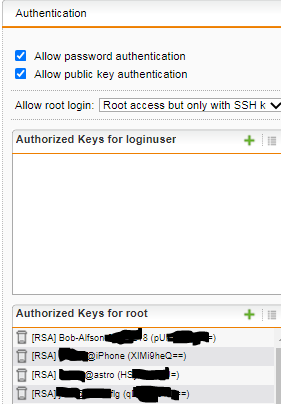
    For access to the command line,  I recommend against using the console and accessing only via SSH.  I use ONLY putty and I generate an RSA key with puttygen.


    Another "trick" is to include my "username (User Network)" object in 'Allowed Networks' and to create a VPN remote access method for my user name so that I can help my clients from anywhere.  I recommend the same for my clients' authorized administrators.

    Cheers - Bob

    Jump to answer
Parents
  • I've seen a few similar reports on a German Sophos UTM user group on Facebook today.

    It is, unfortunately, very easy to find a list of IP addresses that are listening on port 4444. Online services such as Shodan routinely scan IPv4 address space and make the results available via their website.

    The primary line of defence against this kind of attack is to limit the IP addresses that are allowed to access WebAdmin. You can do this by updating the list of 'Allowed Networks' under Management > WebAdmin settings. 

    Ideally you should really only allow connections to the WebAdmin from inside your network - from non-routable address ranges such as 192.168.x.x or 10.x.x.x.

    If you do need to access WebAdmin from outside of the organization, you should try to narrow down the number of allowed IP addresses. If you can't create a static list of IP addresses, you could use Dynamic DNS - for example:

    1. Create a dynamic DNS hostname and keep it updated with the public IP address of your admin's laptop. There are many services that allow you to do this.

    2. Under Definitions & Users > Network Definitions create a 'DNS host' type entry for this dynamic DNS hostname

    3. Under Management > WebAdmin Settings > General, add this new DNS host entry to the 'Allowed networks' list and remove any unneeded items.

    Obviously, making sure you have a strong password for any Admin accounts is also important.

Reply
  • I've seen a few similar reports on a German Sophos UTM user group on Facebook today.

    It is, unfortunately, very easy to find a list of IP addresses that are listening on port 4444. Online services such as Shodan routinely scan IPv4 address space and make the results available via their website.

    The primary line of defence against this kind of attack is to limit the IP addresses that are allowed to access WebAdmin. You can do this by updating the list of 'Allowed Networks' under Management > WebAdmin settings. 

    Ideally you should really only allow connections to the WebAdmin from inside your network - from non-routable address ranges such as 192.168.x.x or 10.x.x.x.

    If you do need to access WebAdmin from outside of the organization, you should try to narrow down the number of allowed IP addresses. If you can't create a static list of IP addresses, you could use Dynamic DNS - for example:

    1. Create a dynamic DNS hostname and keep it updated with the public IP address of your admin's laptop. There are many services that allow you to do this.

    2. Under Definitions & Users > Network Definitions create a 'DNS host' type entry for this dynamic DNS hostname

    3. Under Management > WebAdmin Settings > General, add this new DNS host entry to the 'Allowed networks' list and remove any unneeded items.

    Obviously, making sure you have a strong password for any Admin accounts is also important.

Children