This discussion has been locked.
You can no longer post new replies to this discussion. If you have a question you can start a new discussion

SSL remote user VPN - home subnet conflicts with work subnet

I am in the process of switching over a number of sites from cyberoam to sophos xg106 latest firmware.

On cyberoam, if the work network had the same subnet as the remote user's home network, I was able to setup an alias or forwarder or virtual host subnet so the remote home worker could still access resource on the work network.

For example if work subnet is 192.168.1.x and home subnet is 192.168.1.x  then home user can't ping or use remote desktop to access their work pc.

if you try to reach 192.168.1.abc it will only search the home network.

What i've done in the past is setup an translation subnet like 192.168.81.x 

If the user try's rdp to 192.168.81.x the firewall will translate it to 192.168.1.x

how can this be done with the sophos?


This thread was automatically locked due to age.

Top Replies

  • Hello there,

    Thank you for contacting the Sophos Community.

    It would be better for you to move away from the subnet 192.168.x.x on the business side, that range isn’t recommended to use.

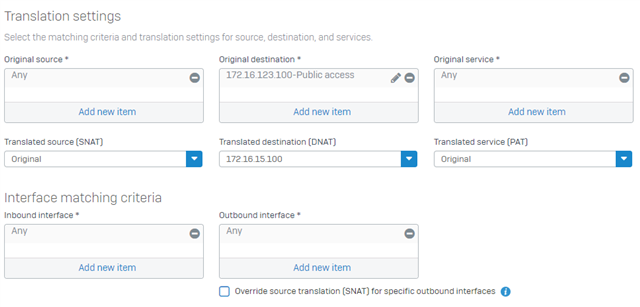
    However in this case, you could configure in the SSL VPN a Fake IP such as 172.16.123.0/24 so this is passed down to the clients when they connect to the SSL VPN.

    Then create a DNAT rule that looks like the following, this is to access only one Server in this case 172.16.15.100, in your case you would put the IP of your server. (e.g 192.168.1.100)

    Then the user will just have to enter on their PC 172.16.123.100 to access the server using 192.168.123.100

    Regards,

    Jump to answer
Parents
  • here is how i fixed it in the past with cyberoam:

    1. Setup subnet forwarding if lan subnet is a very common ip, to avoid conflict with home ip subnets
      1. If the business lan subnet is very common like 192.168.1.x or 10.0.0.x, then frequently those accessing from remote location may be on a subnet with the exact same numbering.  If this happens, the remote computer will not know how to forward the traffic and will usually send it to the remote user’s local subnet instead  of the office LAN subnet.
      2. To work around this we setup a virtualhost/forwarder to forward a unique range of IP’s to the LAN IP’s
    • When for Eg : lan= 192.168.1.x     vpn=10.10.81.x     fwd/alias=192.168.81.x   
    1. Firewall>virtual host>add
    2. Name something like: VPN.81to.1subnetFwd
    3. Type a description like: “this allows vpn users with same remote subnet as the office subnet to use 192.168.81.x as an alternate reference IP to reach 192.168.1.x”
    • Click external IP  (here external doesn’t mean external it means, “to IP/unmapped”)
      1. Click IP range, add ip range (you could also alt. create this in objects, hosts)
      2. Type a name like : 192.168.81.1-254_range
      3. Select: ip range
      4. Enter a start ip like 192.168.81.1, and an end like: 192.168.81.254
      5. Click ok
    • Click mapped IP  (this is the forwarded to ip range – the office lan)
      1. Click IP range, add ip range (you could also alt. create this in objects, hosts)
      2. Type a name like : 192.168.1.1-254_range
      3. Select: ip range
      4. Enter a start ip like 192.168.1.1, and an end like: 192.168.1.254
      5. Click ok
    1. If the ranges match, .1.x forwards to .81.x, and .1.y forwards to .81.y, etc
    2. Leave destination physical zone as LAN
    3. Leave the “enable port forwarding” unchecked – !! This forwards ALL PORTS
    • Click ok
    • You will be prompted to create a firewall rule
      1. Click “add firewall rule for virtual host”
      2. !!very important!! – change Source Zone to VPN
      3. Notice all services are already selected as allowed
      4. Do not do a reflexive rule or to choose any nat  (at this time)
      5. Click add rules
      6. You can verify they were created by going to firewall>rule
      7. You will see a vpn to lan rule
      8. You will also see a loopback rule automatically created that allows the rule to be run from lan to lan
Reply
  • here is how i fixed it in the past with cyberoam:

    1. Setup subnet forwarding if lan subnet is a very common ip, to avoid conflict with home ip subnets
      1. If the business lan subnet is very common like 192.168.1.x or 10.0.0.x, then frequently those accessing from remote location may be on a subnet with the exact same numbering.  If this happens, the remote computer will not know how to forward the traffic and will usually send it to the remote user’s local subnet instead  of the office LAN subnet.
      2. To work around this we setup a virtualhost/forwarder to forward a unique range of IP’s to the LAN IP’s
    • When for Eg : lan= 192.168.1.x     vpn=10.10.81.x     fwd/alias=192.168.81.x   
    1. Firewall>virtual host>add
    2. Name something like: VPN.81to.1subnetFwd
    3. Type a description like: “this allows vpn users with same remote subnet as the office subnet to use 192.168.81.x as an alternate reference IP to reach 192.168.1.x”
    • Click external IP  (here external doesn’t mean external it means, “to IP/unmapped”)
      1. Click IP range, add ip range (you could also alt. create this in objects, hosts)
      2. Type a name like : 192.168.81.1-254_range
      3. Select: ip range
      4. Enter a start ip like 192.168.81.1, and an end like: 192.168.81.254
      5. Click ok
    • Click mapped IP  (this is the forwarded to ip range – the office lan)
      1. Click IP range, add ip range (you could also alt. create this in objects, hosts)
      2. Type a name like : 192.168.1.1-254_range
      3. Select: ip range
      4. Enter a start ip like 192.168.1.1, and an end like: 192.168.1.254
      5. Click ok
    1. If the ranges match, .1.x forwards to .81.x, and .1.y forwards to .81.y, etc
    2. Leave destination physical zone as LAN
    3. Leave the “enable port forwarding” unchecked – !! This forwards ALL PORTS
    • Click ok
    • You will be prompted to create a firewall rule
      1. Click “add firewall rule for virtual host”
      2. !!very important!! – change Source Zone to VPN
      3. Notice all services are already selected as allowed
      4. Do not do a reflexive rule or to choose any nat  (at this time)
      5. Click add rules
      6. You can verify they were created by going to firewall>rule
      7. You will see a vpn to lan rule
      8. You will also see a loopback rule automatically created that allows the rule to be run from lan to lan
Children
No Data